Visual Studio Code and Dev Containers in Linux
Table of Contents
In this guide, you will learn how to install Visual Studio Code and the Remote - Containers extension to use Docker with VS Code.
1. Install Visual Studio Code on Linux
There are several ways to install Visual Studio Code on Linux. The preferred way is to install VS Code using the official repository for Debian/Ubuntu based distributions.
1.1. Install using the .deb package
The easiest way to install Visual Studio Code for Debian/Ubuntu based distributions is to download and install the .deb package (64-bit).
Navigate to your Downloads folder and double-click the file to open it. Then, click the Install button, or run the following in a terminal:
cd ~/Downloads # Navigate to your Downloads folder
sudo apt install ./<file>.deb
# If you're on an older Linux distribution, you will need to run this instead:
# sudo dpkg -i <file>.deb
# sudo apt-get install -f # Install dependencies
Installing the .deb package will automatically install the apt repository and signing key to enable auto-updating using the system’s package manager.
1.2. Install using gpg key and apt repository (alternative)
Alternatively, the repository and key can also be installed manually with the following script:
sudo apt-get install wget gpg
wget -qO- https://packages.microsoft.com/keys/microsoft.asc | gpg --dearmor > packages.microsoft.gpg
sudo install -D -o root -g root -m 644 packages.microsoft.gpg /etc/apt/keyrings/packages.microsoft.gpg
sudo sh -c 'echo "deb [arch=amd64,arm64,armhf signed-by=/etc/apt/keyrings/packages.microsoft.gpg] https://packages.microsoft.com/repos/code stable main" > /etc/apt/sources.list.d/vscode.list'
rm -f packages.microsoft.gpg
Then update the package cache and install the package using:
sudo apt install apt-transport-https
sudo apt update
sudo apt install code # or code-insiders
1.3. Install using Snap (alternative)
Visual Studio Code is also available as a Snap package. If you’re on Ubuntu 16.04 or later, you can install VS Code from the command line:
sudo snap install --classic code # or code-insiders
Once installed, the Snap daemon will take care of automatically updating VS Code in the background. You will get an in-product update notification whenever a new update is available.
2. Install Dev Containers extension
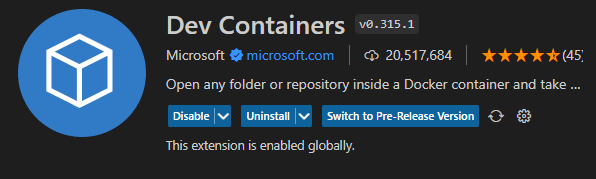
The Remote - Containers extension lets you use a Docker container as a full-featured development environment. It allows you to open any folder or repository inside a container and take advantage of Visual Studio Code’s full feature set.
To install the extension, open Visual Studio Code and click on the Extensions icon in the Activity Bar on the left side of the VS Code window. Then, search for “Dev - Containers” and click Install.
3. Next steps
Install the ROS 2 development environment in a container, follow the instructions