ROS 2 inside dev Container
Table of Contents
- ROS 2 inside dev Container
This package will get you set up using ROS 2 with VSCode as your IDE.
Prerequisites
- Ubuntu 22.04 (installed previously)
- Docker (installed previously)
- Visual Studio Code (installed previously)
- Remote - Containers extension (installed previously)
- Nvidia container toolkit (optionally installed previously)
1. Setup VSCode ROS 2 Workspace Template
If you have an Nvidia GPU, and Nvidia Docker skip this step and go to 1.2
1.1 Setup template for ROS 2 (No Nvidia GPU)
1.1.1 Clone the repository
Clone the following repository to your local machine:
cd ~ # Navigate to your home directory (or any other directory of your choice)
## Clone the repository to your local machine (humble branch)
git clone https://github.com/SESASR-Course/vscode_ros2_workspace.git -b humble
1.1.2 Modify the Dockerfile
Open the vscode_ros2_workspace/.devcontainer/Dockerfile in the repository and modify the first line:
FROM althack/ros2:humble-devel
into :
FROM althack/ros2:humble-gazebo
This will install ROS 2 with Gazebo and other dependencies.
After this step and go to 2. Open the workspace in VSCode using Dev Containers
1.2 Setup the template for ROS 2 (Nvidia GPU)
Clone the following repository to your local machine:
cd ~ # Navigate to your home directory (or any other directory of your choice)
## Clone the repository to your local machine (humble-nvidia branch)
git clone https://github.com/SESASR-Course/vscode_ros2_workspace.git -b humble-nvidia
1.2.2 Modify the Dockerfile
Open the vscode_ros2_workspace/.devcontainer/Dockerfile in the repository and modify the first line:
FROM althack/ros2:humble-cuda-dev
into :
FROM althack/ros2:humble-cuda-gazebo-nvidia
This will install ROS 2 with Gazebo and other dependencies.
2. Open the workspace in VSCode using Dev Containers
Open the vscode_ros2_workspace folder in VSCode (File -> Open Folder).
The first time you open the folder in VSCode, you will be prompted to reopen the folder in a container.
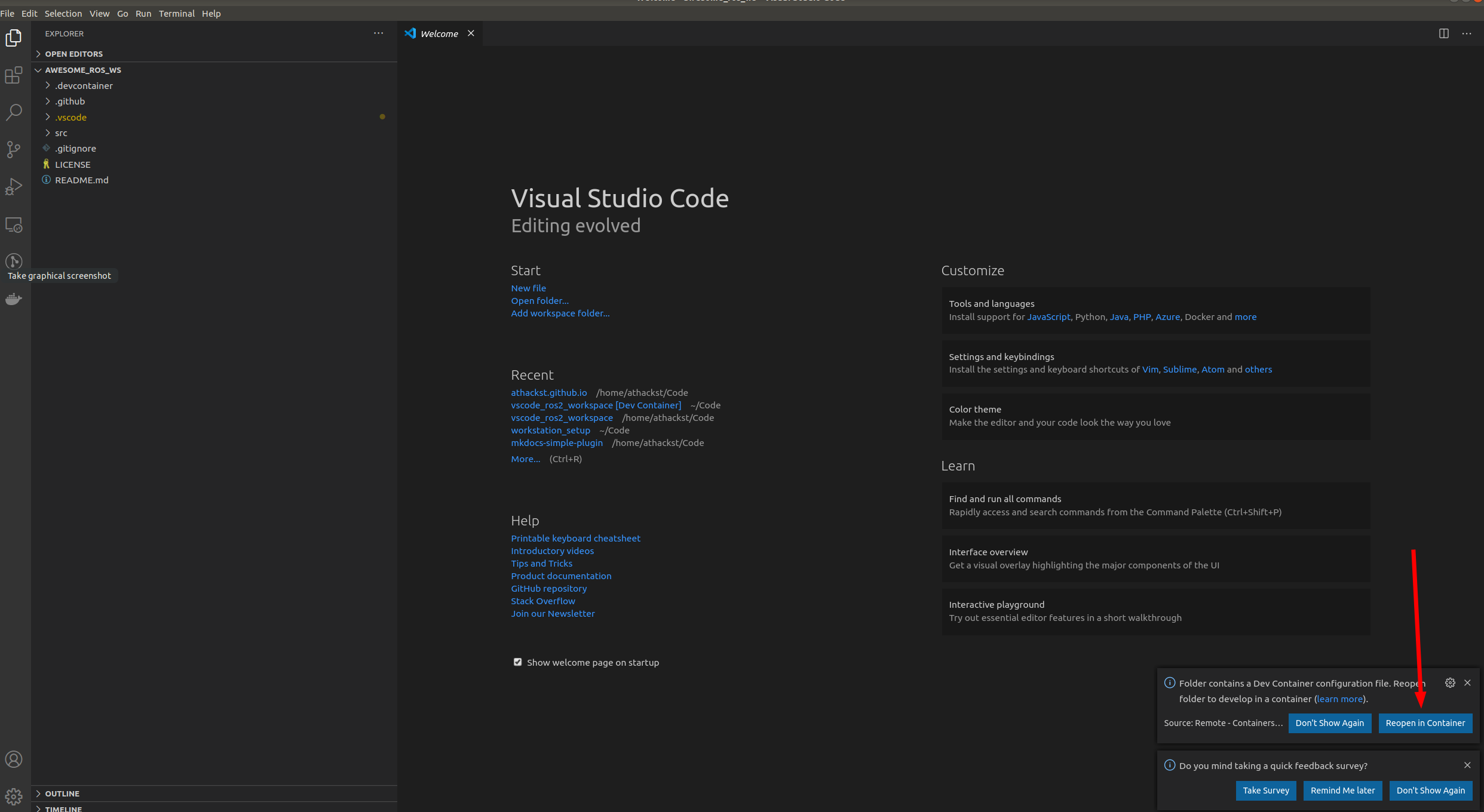
Click on Reopen in Container to open the folder in a container.
If you don’t see the pop-up, click on the little green square in the bottom left corner, which should bring up the container dialog
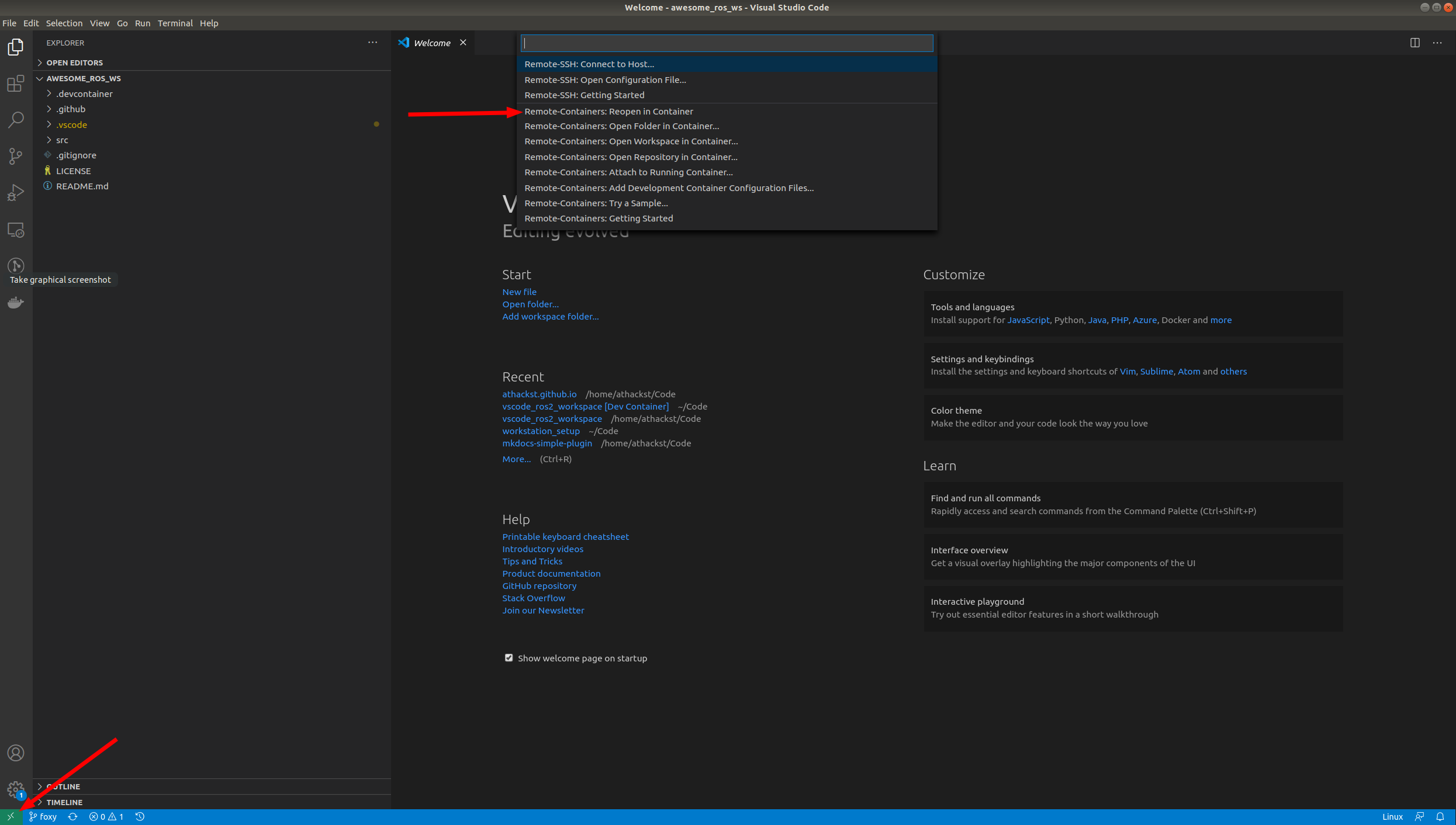
In the dialog, select “Remote Containers: Reopen in container” or press Ctrl + Shift + P and type “Remote Containers: Reopen in container”
VSCode will build the dockerfile inside of .devcontainer for you. If you open a terminal inside VSCode (Terminal->New Terminal), you should see that your username has been changed to ros, and the bottom left green corner should say “Dev Container” it may take a few minutes to build the first time.
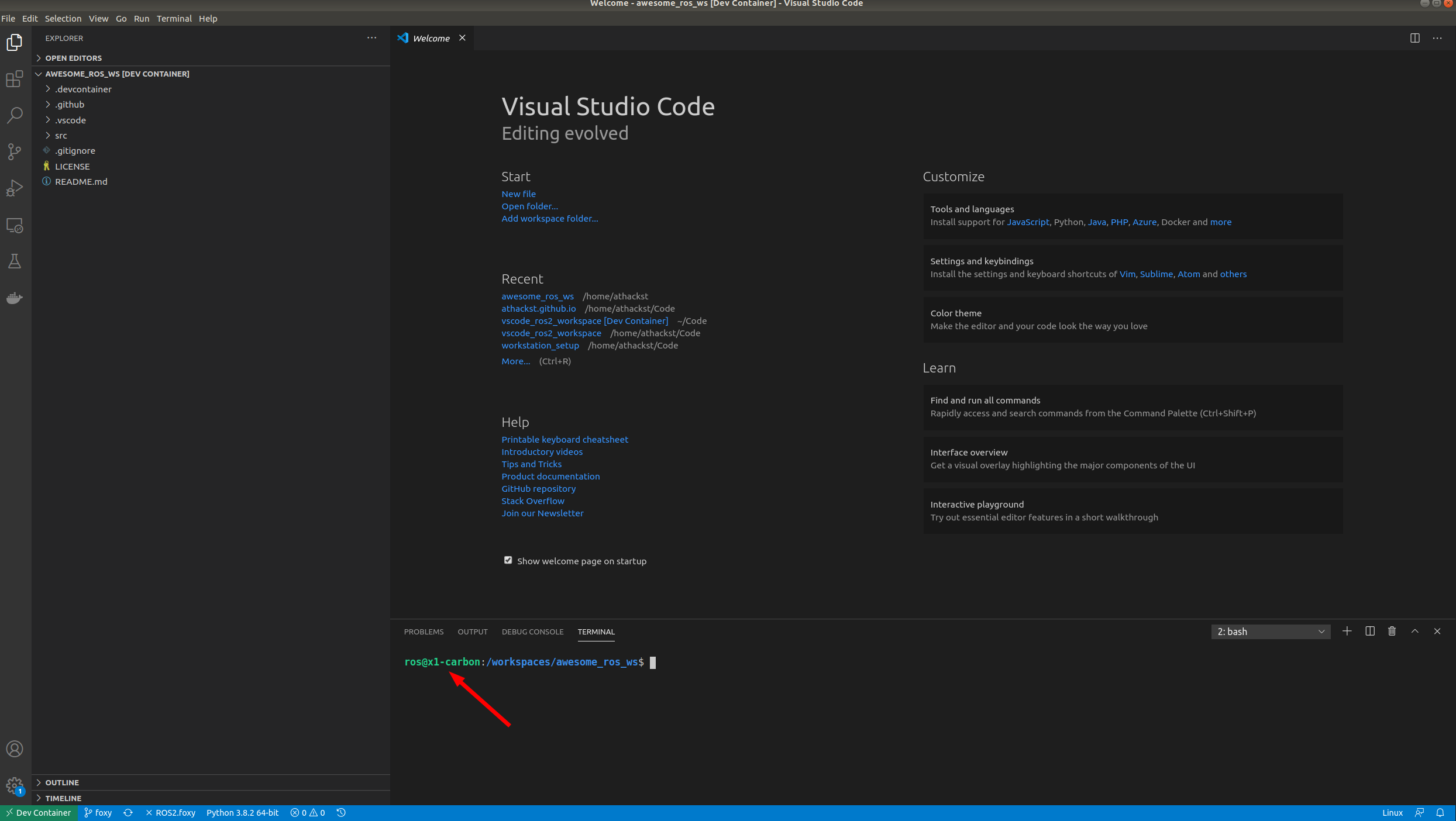
Congratulations! You are now running ROS 2 inside a container!
2.1. Verify ROS 2 installation
To verify the installation, open a terminal inside VSCode (Terminal->New Terminal) and run the following command:
ros2 topic list
You should see the following output:
/parameter_events
/rosout